1.How to adjust the alignment of the overlapping parts of the two projectors used for 3D map projection and ensure the consistency of the screen images?
2.In the provided case, this part of the content was not provided.
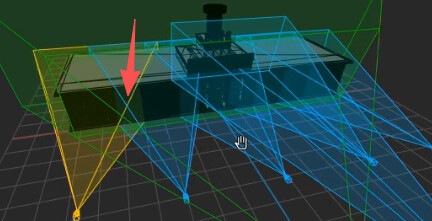
The example project you’re referring to is based on a calibration simulation of the Kyiv River Port. I’ll make sure it includes all the necessary content for proper functionality.
In this particular case, position estimation is used. When working in Position Estimation mode for a projector, the workflow is as follows:
- Select 5–6 reference points on the 3D model.
- Switch to Adjust Points mode and manually position those reference points to align with their corresponding physical locations.
- Once aligned, click Estimate. This action will automatically calculate and set the projector’s position, throw ratio, and lens shift values based on the selected points.
- After estimation, connect a Soft Edge Blender node to the scene. This node will automatically generate the necessary blend masks between projectors.
Please note that the Kyiv River Port calibration simulation project may require updates to ensure compatibility with the latest version of Screenberry. I will check and confirm that.